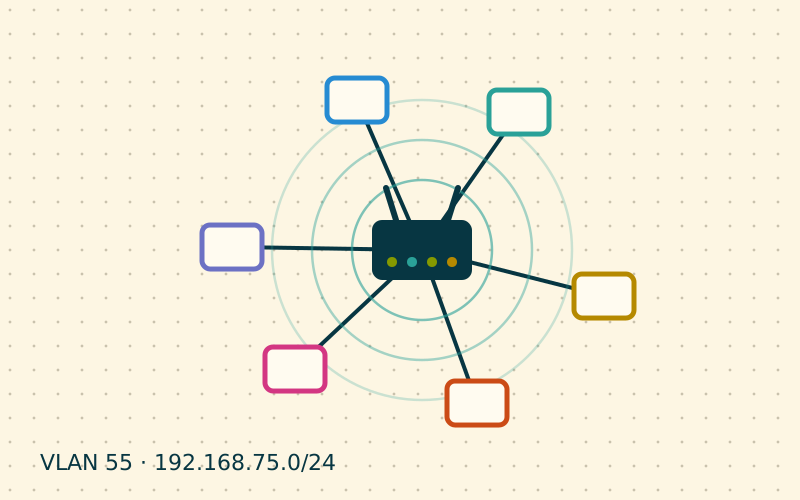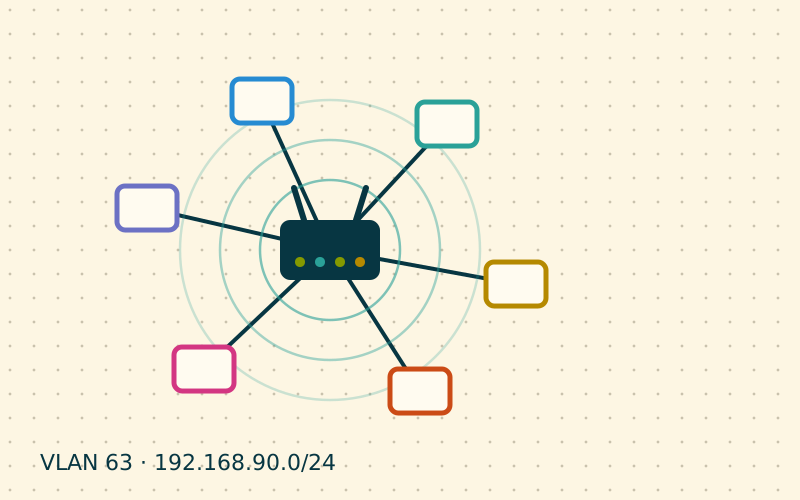
Parental controls can be applied in two places: on the individual device, with operating system features or dedicated apps, or on the home network, through the router and DNS. The two approaches are not mutually exclusive. The network approach has one important advantage: it also covers devices on which you cannot install apps, such as consoles, TVs and media players, and it is configured in a single place.
What the network can do
The features available vary from router to router, but they almost always fall into four groups:
- access schedules: Internet available to certain devices only at certain times, for example not after 10 pm on school nights;
- instant pause: a button, often in the router's app, that suspends a profile's connection;
- content filters: blocking categories of sites through DNS;
- usage reports: which domains were requested and when, with varying levels of detail.
Profiles, not devices
The tidiest way to organise rules is by person. Create a profile for each child and link their devices to it: phone, tablet, console. Schedules and filters apply to the profile, so adding a new device simply means assigning it to the right person.
The router recognises devices by their MAC address. To keep recognition stable, on the children's phones and tablets it is best to turn off the private Wi-Fi address for the home network only. Alternatively, you can give them a separate Wi-Fi network with its own rules, which does not depend on recognising each individual device.
Family DNS filters
The simplest content filter to enable is a DNS service with family protection. Some public DNS services offer dedicated addresses that block adult or malicious sites; in many cases they also enforce safe search on the main search engines. You simply enter those addresses in the router, or only on the children's network.
If you run a filter such as Pi-hole or AdGuard Home at home, you can go further: apply different lists to different groups of devices, enforce safe search, block specific services and see which domains are being requested.
| Tool | Pros | Cons |
|---|---|---|
| Router features | Simple, built in, often with an app | Limited options, depends on the model |
| Public family DNS | Free, immediate | Same rules for everyone, little customisation |
| Local DNS filter | Rules per group, detailed logs | Needs a small server and some time |
| App on the device | Works outside the home too | Has to be installed and managed on each device |
A typical setup
- Create a profile for each child and assign their devices.
- Set the schedules: for example connection paused at night and during homework.
- Enable a family DNS filter on their devices or their network.
- Turn on safe search, if the tool allows it.
- After a few days, check that the rules really apply by testing from each device.
The technical limits
It is important to know what the network cannot do, so as not to have a false sense of security:
- mobile data bypasses the home network entirely: a phone with a SIM and data allowance is untouched by the router's rules;
- VPNs and proxies hide traffic from the DNS filter;
- encrypted DNS configured in the browser can bypass the filter, if the router does not handle it;
- content inside permitted platforms is not distinguished: DNS sees the name of a video platform, not the individual video;
- friends' devices joining the guest network do not get the children's profile rules, unless you apply them there too.
That is why network controls work best together with operating system features, which follow the device outside the home and know more about apps.
Transparency and conversation
Controls that children know about and understand are also more effective: knowing that a schedule exists and why reduces attempts to get around it. In my work I have seen simple, explained rules, with clear schedules and a basic filter, work better than extremely strict setups that get bypassed within a week with a free VPN app. As children grow older, restrictions can be relaxed and give way to shared reports and agreements.
In short
- Network parental controls also cover consoles and TVs, and are configured in one place.
- Organise rules by profile and link each person's devices to it.
- A family DNS service or a local filter blocks whole categories of sites.
- Mobile data, VPNs and encrypted DNS can bypass network rules.
- Simple, explained rules last longer than strict, hidden ones.