For years the MAC address was considered the fixed identity of a network device: a code assigned at the factory and never changed. Many home router features rely on this idea, from address reservations to parental control filters. Today, however, phones, tablets and computers increasingly use random MAC addresses, and whoever runs a home network notices when something stops working.
Why random MACs exist
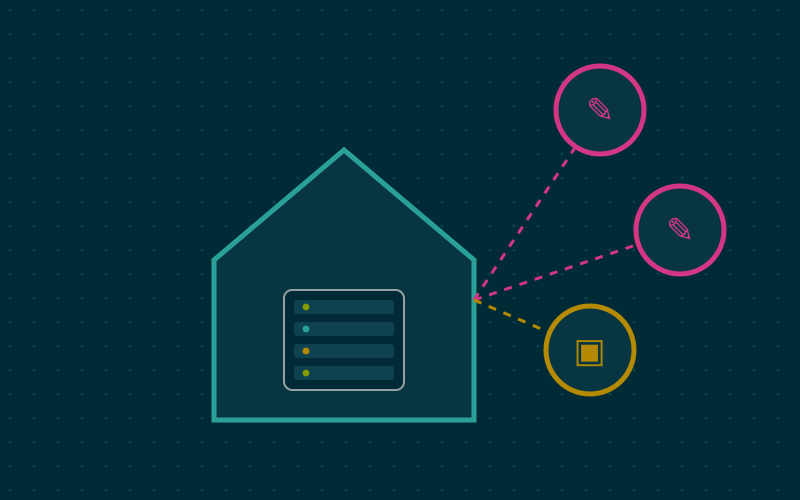
When Wi-Fi is on, a phone constantly looks for available networks and, when connecting, introduces itself with its MAC. A fixed address lets anyone running Wi-Fi networks in shops, stations or shopping centres recognise the same phone over time and in different places, reconstructing movements and habits.
That is why operating systems introduced private addresses. iOS has done so since version 14, Android by default since version 10, and Windows and macOS offer similar options too. The most common behaviour is a different address for each network, but stable on that network. Some recent versions also offer addresses that change periodically on the same network.
How to recognise them
A random MAC is marked as "locally administered". In practice the second character of the address is always 2, 6, A or E:
| Example | Type |
|---|---|
3C:22:FB:... |
Factory address |
DA:4F:91:... |
Random address (second character A) |
F6:10:2B:... |
Random address (second character 6) |
The prefix of a random address does not match any manufacturer, so scanning apps show the device as unknown.
What stops working
DHCP reservations
If you gave the tablet a fixed IP address through its MAC, the reservation works as long as the MAC stays the same. With a rotating address, or after resetting network settings, the tablet gets a new IP and the rule no longer applies.
MAC filters and access lists
MAC filtering, which allows Wi-Fi access only to known addresses, was already weak protection, because a MAC is easy to read and imitate. With random addresses it also becomes inconvenient: every time the address changes, the device is locked out.
Parental controls and per-device rules
Many routers apply schedules, limits and filters per device, identifying it by its MAC. If a teenager's phone changes address, the router sees it as new and the rules do not apply. Sometimes it is enough for the user to "forget" the network and reconnect.
Statistics and inventory
Duplicate or unknown devices show up in the router's list, making it hard to tell who is connected.
How to handle them at home
Turning off the private address on every device is unnecessary, and would remove useful protection outside the home. The more balanced approaches are different.
- Turn it off only for the home network: all major systems let you choose the private address network by network. Leave it on everywhere and switch it off only on the home Wi-Fi, where the device is known anyway.
- Use the fixed-per-network mode: if the system offers a choice between a fixed and a rotating private address, the fixed-per-network option keeps privacy towards the outside and works well with reservations.
- Identify devices in other ways: some management systems recognise devices by the name they report or link them to a user profile, rather than to the MAC.
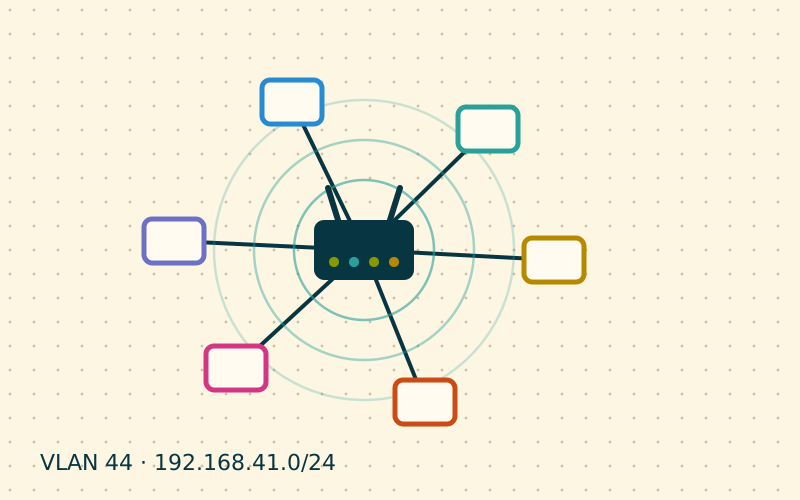
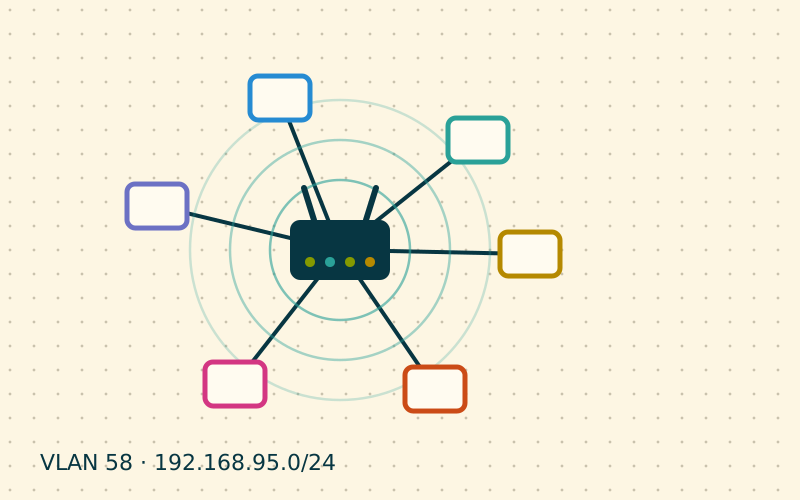
- Apply rules to the network, not the device: for children, a dedicated network or VLAN with its own schedule and DNS filter does not depend on the MAC.
- Give up MAC filtering as a security measure: a strong password with WPA2 or WPA3 protects far better.
A practical example
In a home with parental controls on the children's tablets, the most stable configuration is this: private address turned off only on the home network in each tablet's Wi-Fi settings, a DHCP reservation on the router, schedule rules tied to those MACs. Alternatively, the tablets connect to a dedicated SSID with its own DNS filter and schedule. In my work I prefer the second option when there are many devices: it survives resets and phone changes too.
In short
- Random MACs protect privacy by preventing a device from being tracked across networks.
- You can spot them by the second character of the address: 2, 6, A or E.
- They can break DHCP reservations, MAC filters and per-device parental controls.
- It is best to disable them only on the home network, leaving them on elsewhere.
- Rules tied to a dedicated network hold up better than rules tied to a MAC.