Installing a Linux virtual machine from an ISO image takes the same steps every time: choose the language, partition the disk, create the user, configure the network, update the packages, copy the SSH key. Done once it is instructive; done for the tenth time it is just a waste of time, and every manual installation risks being slightly different from the others.
The solution used in public clouds works just as well at home: cloud images, templates and cloud-init.
What cloud-init is
cloud-init is a program included in the cloud images of almost every major Linux distribution. On the machine's first boot it reads a configuration supplied from outside and applies it: it creates users, installs SSH keys, sets the hostname, configures the network, installs packages and runs commands.
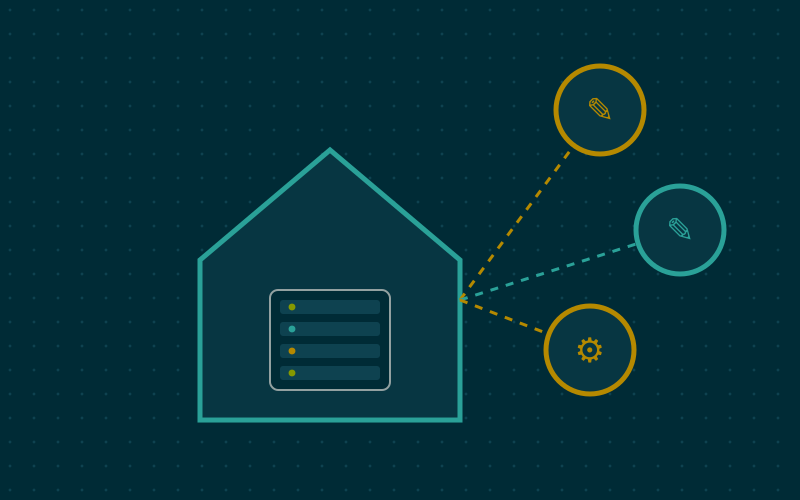
The configuration can come from various "data sources": a metadata service in public clouds or, with home hypervisors, a small virtual disk attached to the machine that holds the configuration files. Proxmox, for example, generates this disk automatically from the fields filled in through the interface.
Cloud images: the starting point
Distributions publish images that are already installed and ready, designed precisely to be booted with cloud-init. They usually come in qcow2 or img format, take a few hundred megabytes and contain a minimal system.
Compared with an ISO they have two advantages: they need no installation, and they are designed to be cloned, because on first boot they generate new SSH host keys and a new machine identifier.
Creating a template on Proxmox
The typical procedure, run from the host shell, is the following. Numbers and names are examples.
qm create 9000 --name debian-template --memory 2048 --cores 2 \
  --net0 virtio,bridge=vmbr0 --scsihw virtio-scsi-single
qm importdisk 9000 debian-cloud.qcow2 local-lvm
qm set 9000 --scsi0 local-lvm:vm-9000-disk-0
qm set 9000 --ide2 local-lvm:cloudinit
qm set 9000 --boot order=scsi0 --serial0 socket --vga serial0
qm set 9000 --agent enabled=1
qm template 9000
The steps, in order:
- create an empty virtual machine with memory, cores and a network card;
- import the cloud image as a disk;
- attach the disk and add the cloud-init drive;
- set booting from the disk and a serial console, which many cloud images use instead of a screen;
- enable the guest agent;
- convert the machine into a template.
A template does not boot: it serves only as a model to clone.
Cloning and customising
From then on, a new virtual machine is created with a clone:
qm clone 9000 120 --name web01 --full
qm set 120 --ciuser marco --sshkeys ~/.ssh/id_ed25519.pub
qm set 120 --ipconfig0 ip=192.168.10.120/24,gw=192.168.10.1
qm resize 120 scsi0 +18G
qm start 120
A few seconds later the machine is running, with the user created, the SSH key installed and the IP address set. The cloud image disk is small, so enlarge it before the first boot: many images automatically grow the partition to the available space.
Full or linked clone
A full clone copies the whole disk and is independent of the template. A linked clone shares the template's data and stores only the differences: it is created instantly and takes little space, but it depends on the template, which cannot be deleted while linked clones exist. For throwaway test machines a linked clone is ideal; for services meant to last, a full clone is the safer choice.
Richer configurations
Beyond the basic fields, cloud-init accepts complete configuration files in YAML, called "user data". A minimal example:
#cloud-config
package_update: true
packages:
  - qemu-guest-agent
  - htop
runcmd:
  - systemctl enable --now qemu-guest-agent
timezone: Europe/Rome
On Proxmox these files are saved in a storage with "snippets" enabled and attached to the machine with the --cicustom option. That way every new machine is born with the guest agent, the right time zone and your favourite tools.
Keeping the template current
A template created a year ago produces machines with a year of updates to catch up on. It pays to:
- rebuild it periodically from a recent cloud image;
- or have the user data run updates on first boot, accepting a few extra minutes;
- keep a script with all the creation commands, so rebuilding takes seconds.
The script itself becomes documentation: anyone, including yourself six months later, can see at once how the template was built.
The next step
Once you are used to templates, the natural next step is to hand machine creation to infrastructure-as-code tools and their configuration to configuration management tools. cloud-init remains the bridge between the two: it brings a newborn machine to the minimum state needed to be reached and configured.
In short
- cloud-init applies users, SSH keys, network, packages and commands on first boot.
- Distribution cloud images are small, preinstalled and designed to be cloned.
- A template is built once and cloned in seconds; linked clones are ideal for tests.
- The cloud image disk should be enlarged before the first boot.
- Rebuild the template periodically, ideally through a script that documents the steps.